
Useful Links#
Retina Calculator: https://tools.rodrigopolo.com/display_calc/
Introduction#
Today’s topic is monitors, but most of this can also be applied to TVs. I don’t need to explain what a monitor generally is, unlike some of the other topics I’ve covered. However, if there is one thing I notice constantly, it’s that people almost exclusively talk about resolution when buying one. But there is so much more to a good display!
This quickly brings us to terms like SDR or HDR. Glossy or non-glossy displays? DisplayPort or HDMI? OLED or LCD? And then, of course, there is the resolution. There is actually a physical limit to our eyes that many people don’t know about, which means they won’t even notice the difference with excessively high resolutions. But more on that later.
HDR vs. SDR#
Let’s start simple: What is the actual difference between HDR and SDR?
HDR stands for “High Dynamic Range” and is essential for the contrast and color reproduction of the display. I have included two images here that illustrate my explanation perfectly.
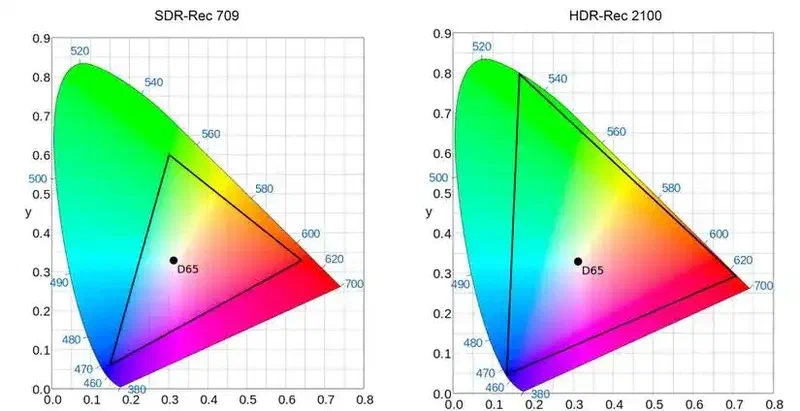
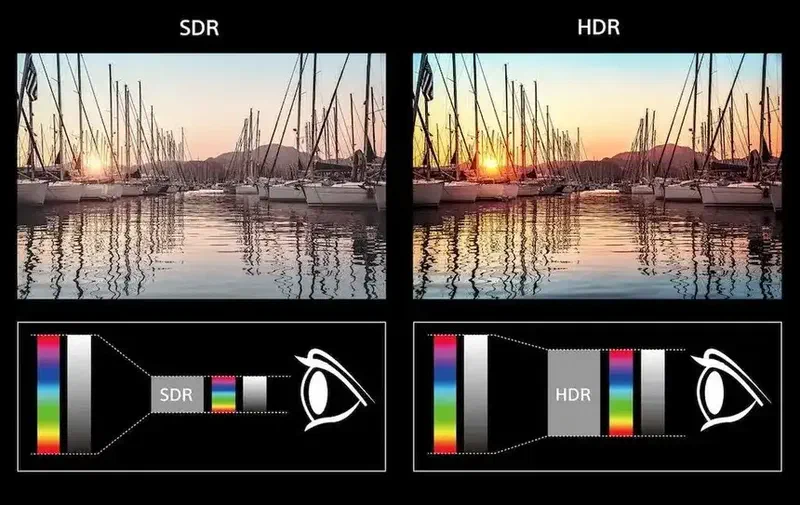
SDR (Standard Dynamic Range) has a much smaller color gamut and a lower contrast range in comparison. Therefore, it doesn’t look as realistic and vibrant as reality. That’s why the best resolution is useless if the colors are pale and the image lacks depth.
Display Connections: HDMI or DisplayPort?#
Let’s move on to the connections themselves. I’m ignoring VGA and DVI since they are outdated standards that no longer play a role today. So, what is currently possible with HDMI and DP (DisplayPort)?
HDMI, in its current version HDMI 2.1b, offers an enormous bandwidth (48 Gbps) that even enables 4K resolution at 144 Hz natively, without having to compress the image.
DisplayPort (DP), however, is often the winner in the PC sector. With the current DP 2.1 standard (UHBR20), up to 80 Gbps are possible. This allows for crazy resolutions like 8K at 240 Hz (although Display Stream Compression is required here).
Another major advantage: DisplayPort is a royalty-free standard from VESA. Unlike HDMI, where manufacturers have to pay licensing fees, DP can be implemented freely by anyone. This makes it extremely appealing in the open-source world and for Linux driver developers, and it is often more stable to handle.
The quality of the cables is also crucial. I have linked a video here that goes a bit deeper into the topic:
But now let’s get to the question of what this mentioned “Display Stream Compression” actually is.
Display Stream Compression (DSC)#
Display Stream Compression is almost self-explanatory: It is a visually lossless compression of the video material. If you want to use 4K at an insane 240 Hz, for example, even the bandwidth of many current connections is no longer sufficient.
With DP 2.1 (UHBR20), you currently have so much bandwidth that compression is often obsolete. This is also extremely important when buying a monitor and a graphics card: If you want to use 4K at 240 Hz without compression, both devices (graphics card and monitor) must fully support the UHBR20 standard. Many monitor manufacturers like to save money on the connection and advertise great Hz numbers, but internally only deliver scaled-down bandwidths that require heavy compression.
What is Daisy Chain?#
Here is something else that could be very useful: Daisy Chain. Daisy chain is a feature that works primarily via DisplayPort (or USB-C/Thunderbolt) and allows you to connect one monitor directly to the next monitor. This way, only a single cable is needed from the computer to the first monitor. Here is an illustration to clarify:
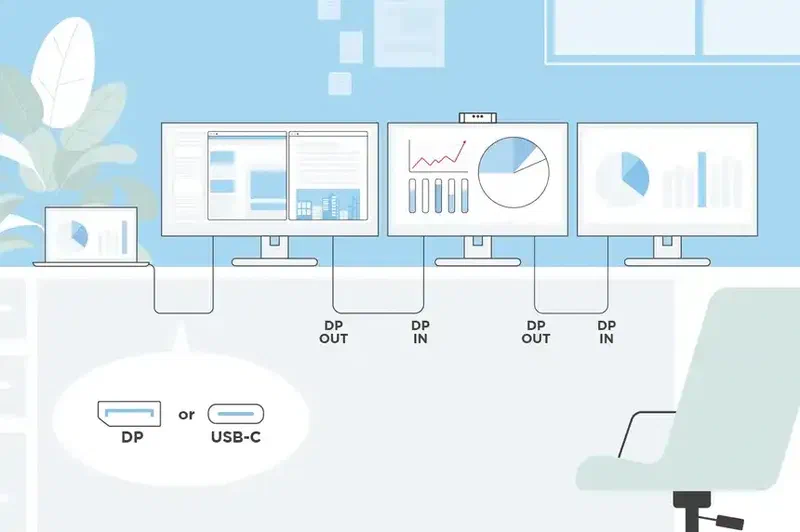
The limit here is that the monitors have to share the bandwidth of this one cable. However, it is extremely practical if you have a laptop with only one USB-C/DisplayPort connection, for example, but still want to use a multi-monitor setup without having to immediately buy an expensive docking station.
OLED and LCD Technology (IPS, TN, VA)#
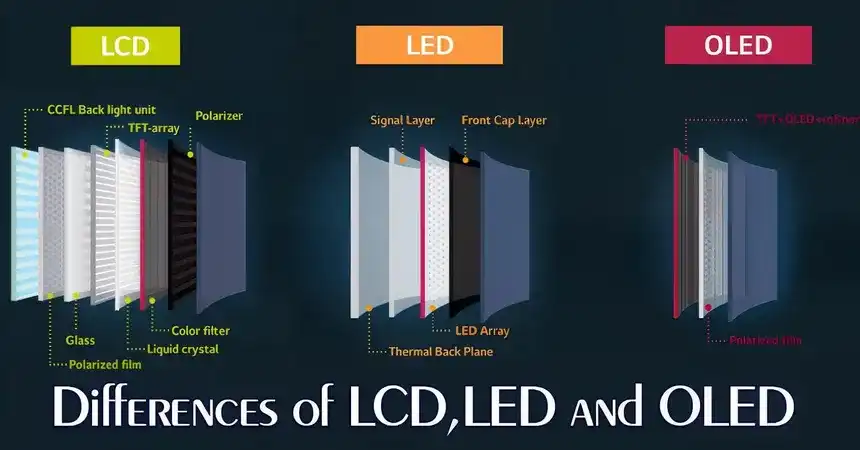
Let’s move on to the display panels. I’ll keep this compact but cover the respective pros and cons of the most important technologies.
OLED#
OLED stands for “Organic Light Emitting Diode”. Here, each pixel illuminates itself. This technology is increasingly becoming the standard in the high-end sector. It has extremely low latency (often in the 0.1 ms range) and perfect black levels because black pixels are simply turned off completely.
One downside, however, is the risk of “burn-in” if image content (like the Windows taskbar) is displayed statically for thousands of hours. Then it can happen that this image burns in slightly. Here you can see what I mean:

Fortunately, this problem is becoming increasingly rare thanks to modern techniques built-in by manufacturers (“Pixel-Shift”, “Pixel-Refresh”).
LCD: IPS#
LCD (“Liquid Crystal Display”) is the umbrella term for panel types with a backlight. The IPS panel is today’s standard for most users. The big advantage: Fantastic viewing angle stability (up to 178°). The image does not get dark or distorted when you look at it from the side or from above. In addition, it offers excellent colors. IPS panels used to be quite slow, but today’s “Fast IPS” displays easily achieve extremely high Hz numbers and low latencies.
LCD: TN#
TN panels are the absolute classic for hardcore esports gamers. For a long time, they were the only panels that could achieve 1 ms delay and extremely high Hz rates (sometimes over 500 Hz). The major disadvantage: They have terrible viewing angle stability and the colors often look very washed out. Great for pure pro gamers, but for the average consumer, I would always recommend IPS or OLED today.
LCD: VA#
The VA panel is the compromise between IPS and TN and is nowadays extremely often used in “curved monitors” and TVs. It offers the best contrast ratio among LCDs (very deep blacks, much better than IPS). The color values and viewing angles are good, but cheaper VA panels often struggle with smearing or ghosting during fast movements.
Glossy vs. Non-Glossy Display?#
Should the display be reflective (glossy) or matte (non-glossy/anti-glare)?
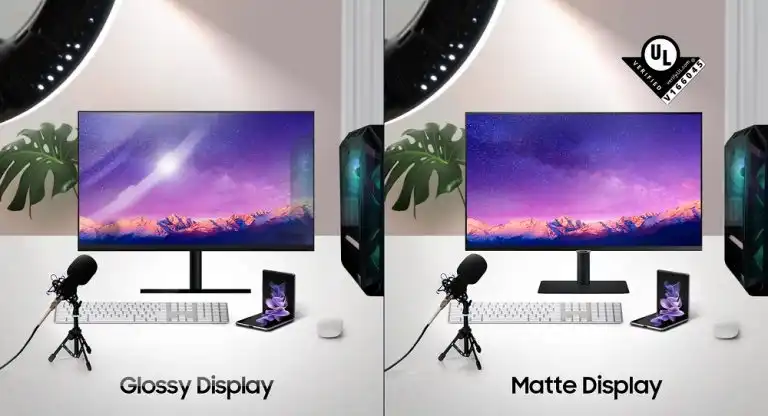
Glossy: Glossy displays often provide richer colors and deeper blacks, but they reflect the light from lamps or windows extremely strongly. This can be very annoying in a home office. In dark rooms, however, the picture is unbeatable.
Non-Glossy (Matte): A matte coating scatters the light and prevents exactly these reflections. Perfect for bright workspaces! A small disadvantage: The image can appear slightly less sharp or “grainy” in direct comparison to a glossy display.
Here you can see the comparison in direct light exposure:
Hz, G-Sync, FreeSync, and V-Sync#
The Hz (Hertz) number indicates how many frames per second a screen can display. First, a little myth: It is often said that the human eye cannot see more than 24 frames per second. This is false! 24 fps is simply the standard in the film industry because it is the minimum required for our brains to perceive individual frames as a fluid motion. In reality, especially with monitors and games, we perceive the difference between 60, 144, or 240 Hz as massively smoother and more responsive.
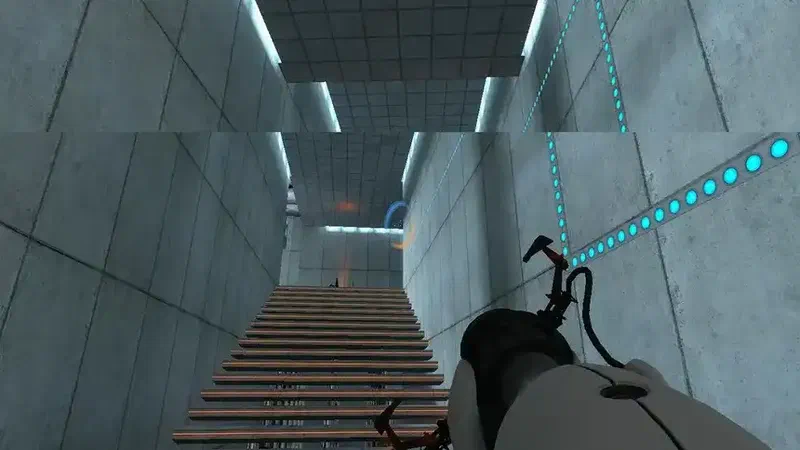
A big problem is so-called screen tearing. This happens when the graphics card does not deliver frames at the same rate as the monitor requests them.
The solution to this are synchronization technologies:
- G-Sync (Nvidia): Special hardware (a chip) in the monitor synchronizes the Hz of the monitor exactly with the FPS of the graphics card. If the game delivers 43 FPS, the monitor runs at 43 Hz.
- FreeSync (AMD / VESA Adaptive-Sync): Works similarly but is an open standard and often cheaper since no special Nvidia chip needs to be installed. Modern FreeSync versions even double the frames at very low FPS (LFC) to completely prevent tearing even in the lower ranges.
- V-Sync: A purely software-based setting in the game. It simply caps the FPS to the maximum Hz rate of the monitor but can lead to noticeable input lag.
Resolution and Retina#
Now we come to a topic that makes extremely high resolutions completely obsolete past a certain point: Retina.
“Retina” is about the PPI (Pixels per Inch) in combination with your viewing distance. The logic is simple: If you sit close to a large monitor, you will see the individual pixels. If you sit further away, the pixels blend together for your eye.
Past a certain point (strictly speaking, at one arcminute / 1/60th of a degree of our field of vision), the human eye simply cannot physically distinguish the pixels from one another anymore. The image appears consistently sharp, like a printed page. This means: If your monitor on your desk has already reached this Retina distance at 4K, a much more expensive 8K monitor will bring you absolutely no visible advantage!
Feel free to test your viewing distance and monitor size in this calculator:
Conclusion#
I could go into much more detail. For example, integrated KVM switches in the display, Power Delivery for directly powering laptops via USB-C, or Mini-LEDs as a bridge technology to OLED. But I think we have covered the most important things to make informed decisions when buying a monitor.
Thank you for reading!
Services from XenoElectronics#
If you need help with your projects or with open source software. Take a look at our contact page and let us know what you need. We will help you to realize your projects.
Open source support & coffee fund#
Did this guide save you hours of troubleshooting? We are happy to make this knowledge available to the community free of charge. If you would like to support our work on further open source tutorials, we would appreciate a “virtual coffee” or your support on Patreon.
Thank you for reading and for your time!
If you like to share this artikel click the icons below.